
FAQ & Important Notes
- Frequently Asked Questions
- Why are my offers not showing on my storefront?
- Why did my offers suddenly stop showing?
- How does the billing cycle reset work?
- Does the revenue limit count all store revenue or just upsell revenue?
- Can I have multiple offers active at the same time?
- What happens when multiple offers match the same page?
- How do AI recommendations work?
- Can I show offers on custom page templates?
- Can I track revenue without the order webhook?
- Important Notes
- Glossary
Frequently Asked Questions
Why are my offers not showing on my storefront?
Check all of the following:
- Theme block is installed — The Product Offer or Cart Upsell block must be added to your theme via the Shopify Theme Editor. See Theme Blocks.
- Offer is Active — Offers in Draft or Paused status are not visible to customers.
- Trigger conditions match — If the offer is set to “Specific Products”, it only shows on the page for the selected trigger products.
- Global disable is off — The Settings page has a global kill switch. Check that it is not enabled.
- Plan limit not reached — If your billing cycle revenue has hit the plan limit, all offers are hidden. Check the Dashboard or Billing page.
Why did my offers suddenly stop showing?
The most common reason is reaching your billing cycle revenue limit. When the limit is reached, all offers are automatically hidden.
- Check the Dashboard for a red warning banner (“Revenue limit reached”).
- Either wait for your cycle to reset (check the cycle start date on the Billing page) or upgrade your plan.
How does the billing cycle reset work?
Billing cycles are 30 days long, starting from the date you first activated the app (or your most recent cycle reset). The cycle start date is shown on the Billing page.
At the end of 30 days:
- The cycle revenue counter resets to $0.
- Offers automatically resume showing (if they were hidden due to the limit).
You cannot manually trigger a cycle reset.
Does the revenue limit count all store revenue or just upsell revenue?
Only upsell revenue counts. The revenue limit tracks purchases made through the app’s offer widgets only. Regular purchases made outside of any offer widget are not counted toward your plan limit.
Can I have multiple offers active at the same time?
Yes. You can have as many Active offers as you like simultaneously. The app will match the most relevant offer(s) to each page based on trigger conditions and offer type.
What happens when multiple offers match the same page?
If multiple Active offers match a page (same trigger product, same type), the app selects the most recently created matching offer. To avoid confusion, design offers so they target distinct products or use different types per product.
How do AI recommendations work?
The app uses the Shopify Admin API to automatically find relevant products:
AI — Similar Products:
- First, tries to find products in the same collections as the trigger product.
- If no results, finds products sharing tags with the trigger product.
- If still no results, falls back to bestselling products.
AI — Bestsellers: Queries your store for the best-selling products sorted by sales volume.
If AI methods return no products, the offer falls back to any manually selected products you’ve added as a fallback.
Can I show offers on custom page templates?
Yes. If you use multiple product page templates (e.g., product.custom-template.json), you’ll need to add the Product Offer block to each template separately via the Theme Editor.
Can I track revenue without the order webhook?
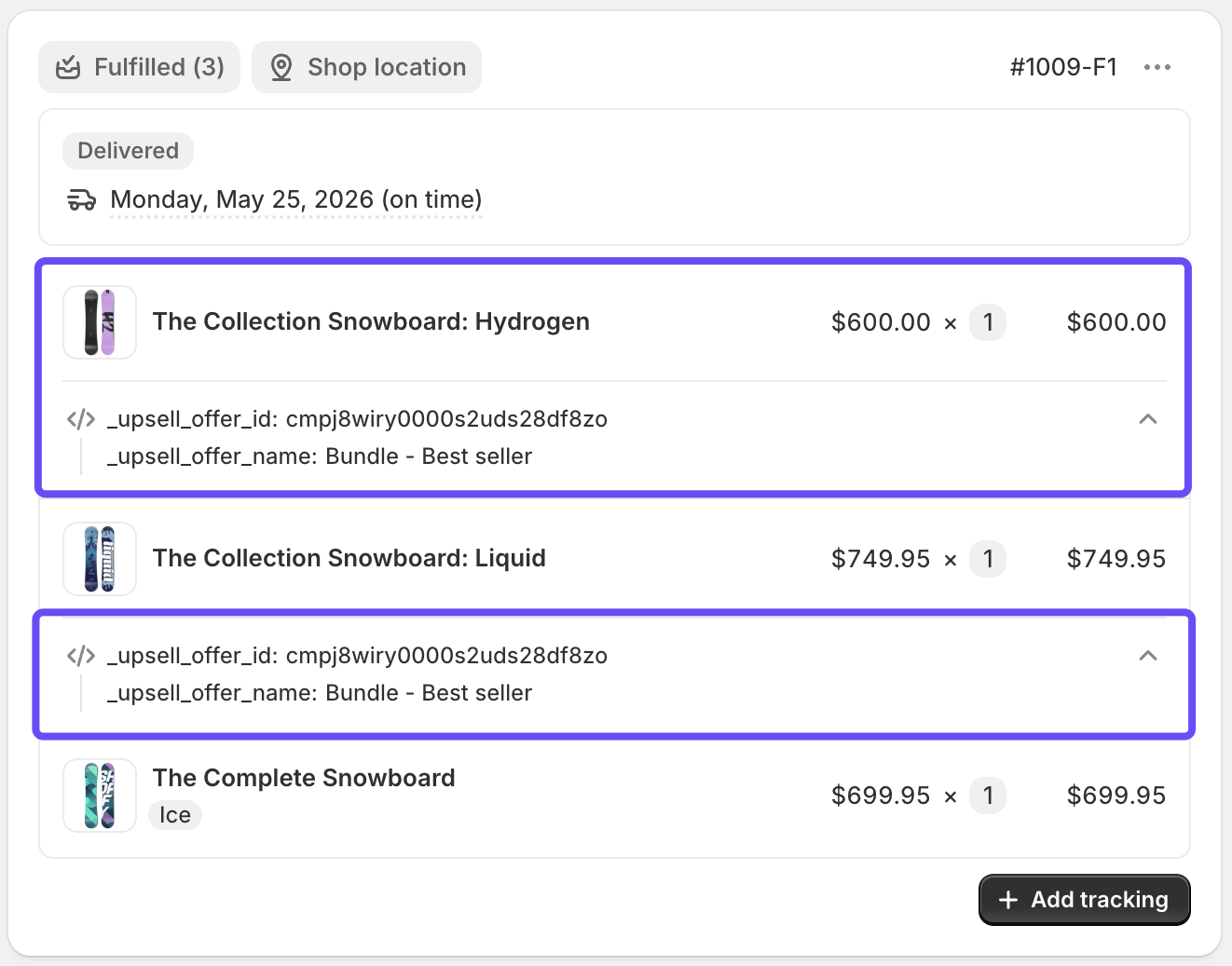
The app tracks conversions from both the frontend widget (when a customer clicks Add to Cart) and the Shopify orders/paid webhook (when an order is actually completed). The webhook is the authoritative source and prevents counting conversions for abandoned carts.
Important Notes
Revenue Limits are Enforced Automatically
There is no manual way to pause or override revenue limit enforcement mid-cycle. When the limit is reached, offers stop showing. This is by design to keep the app aligned with your plan tier.
Solution: Upgrade your plan before you reach the limit to ensure uninterrupted offers.
Theme Blocks Must Be Re-added After Theme Changes
If you:
- Switch to a new theme
- Duplicate a theme and publish the duplicate
- Restore a theme backup
…you will need to re-add the app blocks to the new active theme. The Dashboard will detect missing blocks and show a banner.
Draft Offers Are Never Shown to Customers
Offers in Draft status are completely invisible to storefront visitors. Always change an offer’s status to Active after configuring it.
Discount Changes Apply Immediately
If you edit a discount value on an Active offer, the change applies immediately to all future widget renders. There is no staging or preview.
Deleting an Offer is Permanent
Deleting an offer from the Offers list is irreversible. All associated analytics events are also deleted. Consider Pausing an offer instead of deleting it if you may want to reuse it later.
Billing is Handled by Shopify
All payment processing, billing disputes, and subscription management (beyond the in-app upgrade/downgrade flow) are handled by Shopify’s billing system. Contact Shopify Support for payment-related issues.
Glossary
| Term | Definition |
|---|---|
| Impression | One display of an offer widget to a storefront visitor |
| Click | A customer clicking on a recommended product within the offer widget |
| Conversion | A customer purchasing a product that was recommended by an offer |
| CTR | Click-Through Rate: Clicks ÷ Impressions × 100 |
| Conversion Rate | Conversions ÷ Impressions × 100 |
| Billing Cycle | A 30-day period during which upsell revenue is tracked against your plan limit |
| Trigger Product | The product page a customer must visit to see a “Specific Products” offer |
| Recommended Product | A product suggested to the customer by the offer widget |
| Theme Block | A Shopify Theme Editor component that renders the offer widget on your storefront |