
| ← Back to Offers | ← Back to Home |
Creating Offers
- Overview
- Creating a New Offer
- Step 1: Basic Information
- Step 2: When to Show This Offer
- Step 3: Recommended Products
- Step 4: Discount Offer (Optional)
- Step 5: Display Settings
- Saving the Offer
- After Creating
- Managing Offers
- Next Steps
Overview
Offers are the core of the app. Each offer defines:
- What type of offer it is (Bundle, Popup, or Cart Upsell)
- When to show it (all products or specific products)
- What to recommend (manually selected products or AI-driven suggestions)
- Whether to offer a discount (optional)
- How it looks (title, description, button text)
Creating a New Offer
Navigate to Offers → New Offer from the sidebar.
Step 1: Basic Information
Offer Name (required)
A internal label for identifying your offer in the admin. Customers do not see this.
Example: Summer Bundle — Sunglasses + Sunscreen
Offer Type (required)
Choose how the offer will be displayed to customers.
| Type | Description |
|---|---|
| Bundle | “Frequently Bought Together” widget on product pages |
| Popup | Modal popup that appears on product pages |
| Cart Upsell | Suggestions shown on the cart page |
See Offer Types for a detailed comparison.
Step 2: When to Show This Offer
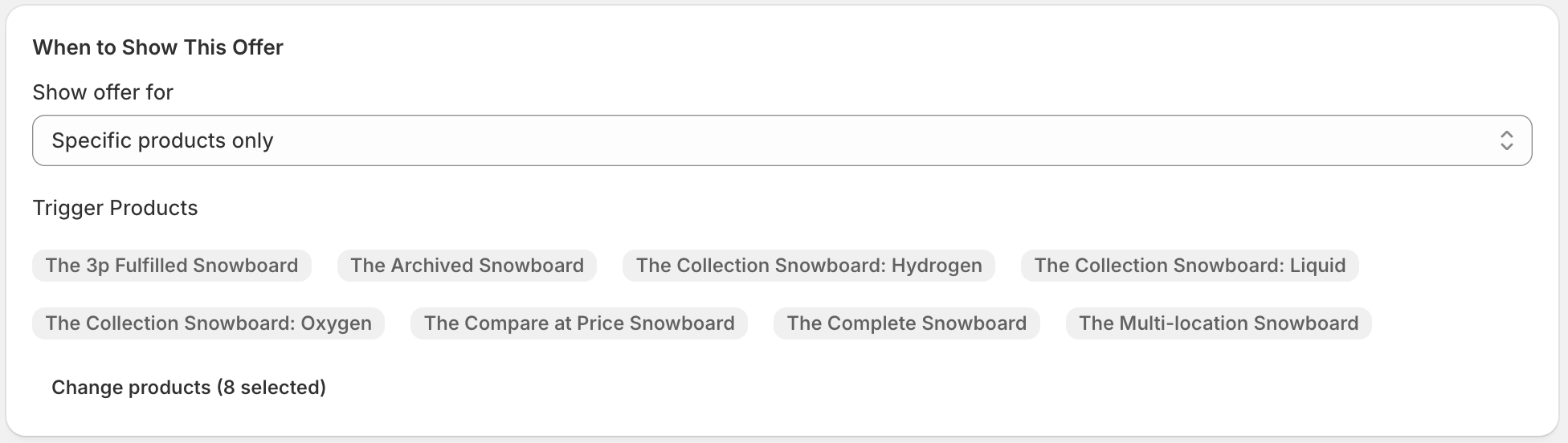
Show Offer For
Controls which product pages trigger this offer.
| Option | Behavior |
|---|---|
| All Products | Offer appears on every product page in your store |
| Specific Products | Offer appears only when a customer views one of the selected products |
Trigger Products (when “Specific Products” is selected)
Click Select products to open the Shopify product picker. You can select one or multiple products.
Selected products are displayed as badges. Click Change to update the selection.
Note: The trigger product is the product the customer is currently viewing — not the product being recommended.
Step 3: Recommended Products
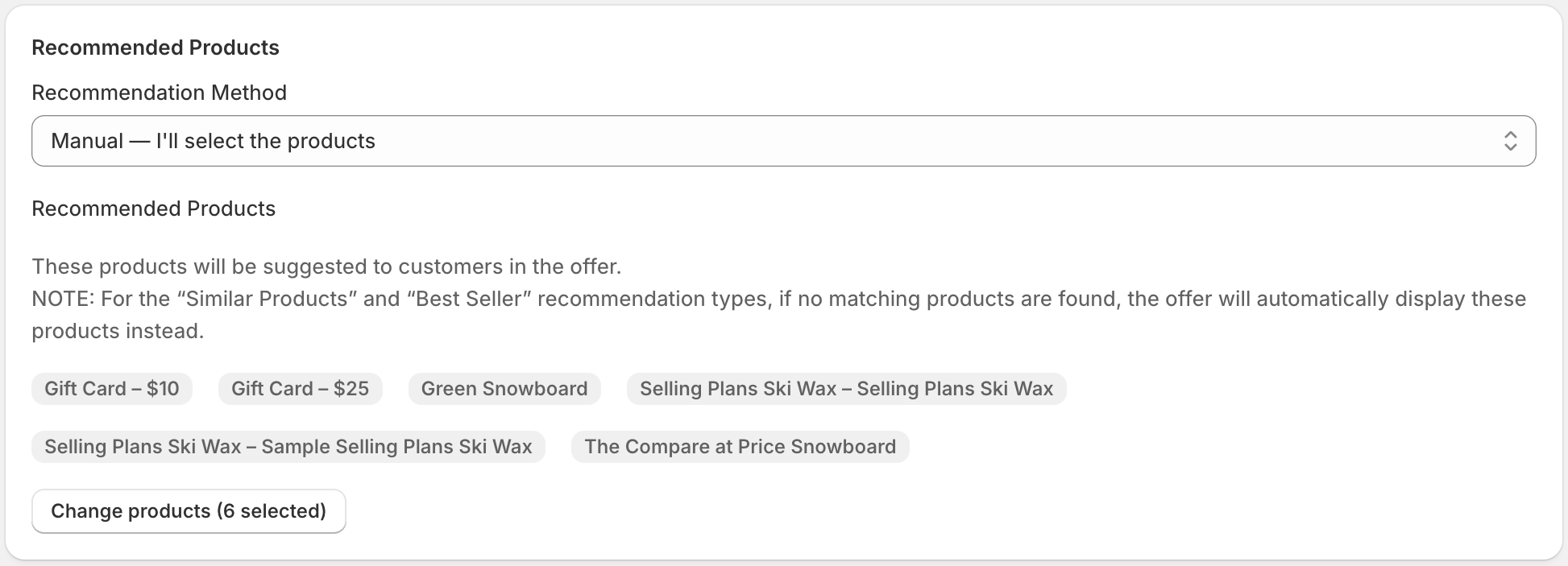
Recommendation Method
| Method | Description |
|---|---|
| Manual | You hand-pick specific products (or variants) to recommend |
| AI — Similar Products | The app automatically finds products with similar tags and collections |
| AI — Bestsellers | The app recommends your store’s best-selling products |
Product Limit (AI methods only)
Set the maximum number of products to display. Range: 1–20 (default: 8).
Recommended Products (Manual method)
Click Select products to open the product picker. You can select individual variants if a product has multiple options.
- Products are displayed as badges showing the product title (and variant name if applicable).
- If AI methods return no results, these manually selected products are shown as a fallback.
Variant Selection: When selecting recommended products, you can pick specific variants (e.g., “Blue – Large”). The offer widget will add that exact variant to the cart when the customer clicks the CTA button.
Step 4: Discount Offer (Optional)
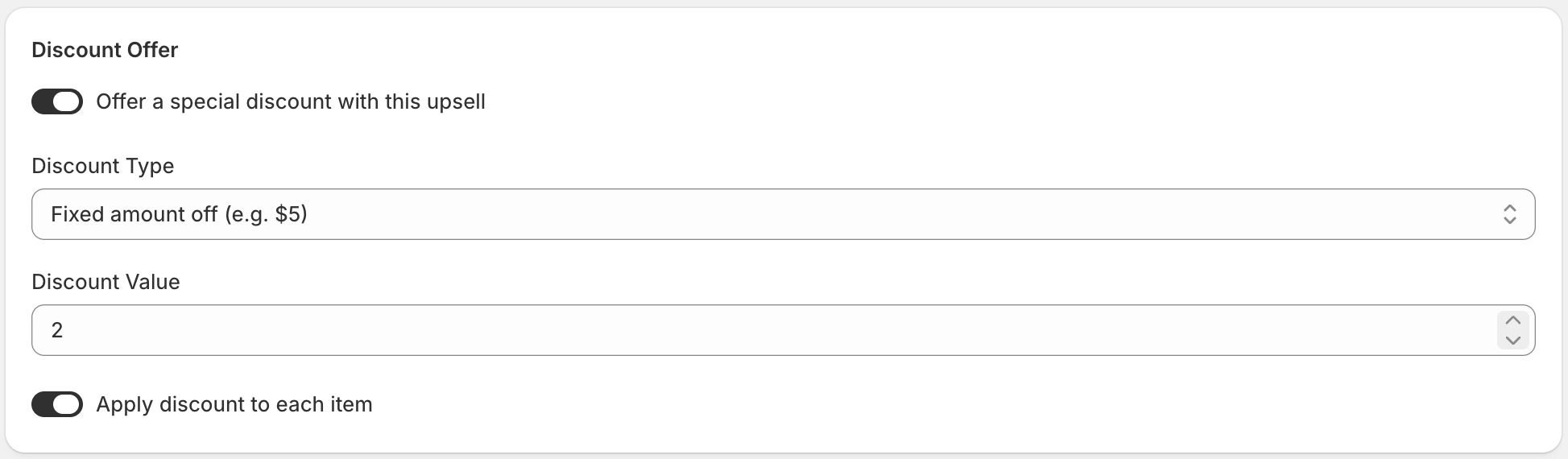
Toggle “Offer a special discount with this upsell” to enable a discount.
See Discounts for full details on discount configuration.
Step 5: Display Settings
These settings control the text shown inside the offer widget.
| Field | Default | Description |
|---|---|---|
| Offer Title | “You might also like” | Headline shown above the product list |
| Description | (empty) | Optional subtitle or promotional message |
| CTA Button Text | “Add to cart” | Text on the action button for each recommended product |
Saving the Offer
Click the Save button in the save bar at the top of the page.
- After saving, the offer is created in Draft status.
- Draft offers are not visible to customers.
- To make the offer live, change the status to Active on the edit page.
To discard all unsaved changes, click Reset in the save bar.
After Creating
Once created, you are redirected to the Edit Offer page where you can:
- Change the offer status (Draft → Active → Paused)
- View performance statistics (impressions, clicks, conversions, revenue)
- Update any offer settings
Managing Offers
From Offers → All Offers, you can:
- Activate / Pause any offer with a single click
- Delete an offer (with confirmation)
- View aggregate stats per offer in the table
Next Steps
- Offer Types explained in detail
- Configure a discount
- Add theme blocks so offers display in your store
| ← Back to Offers | ← Back to Home |